The easiest time to install an iPhone eSIM for Korea is before you fly. With HalfSIM, installation alone does not start your usage period—it starts when the installed eSIM first connects to a network. This guide walks you through compatibility checks, installation, arrival settings, and common connection issues on iPhone.
Quick Answer: How Do I Set Up an iPhone eSIM for Korea?
If you're using HalfSIM, install the eSIM on your iPhone before your trip while you have a reliable internet connection. Installing it does not start the usage period. Once you land in Korea, turn on the HalfSIM line, select it for Cellular Data, and enable Data Roaming.
What you need to know | HalfSIM |
Can I install it | Yes |
Do I need internet | Yes |
Does installation start | No. It starts after installation |
How long do I have | Within 180 days |
How is validity calculated? | In 24-hour periods |
What should I do | Turn on HalfSIM → select it |
[Set up your HalfSIM Korea eSIM before you fly →]
What Should You Check Before Installing an eSIM on iPhone?
1. Check whether your iPhone supports eSIM
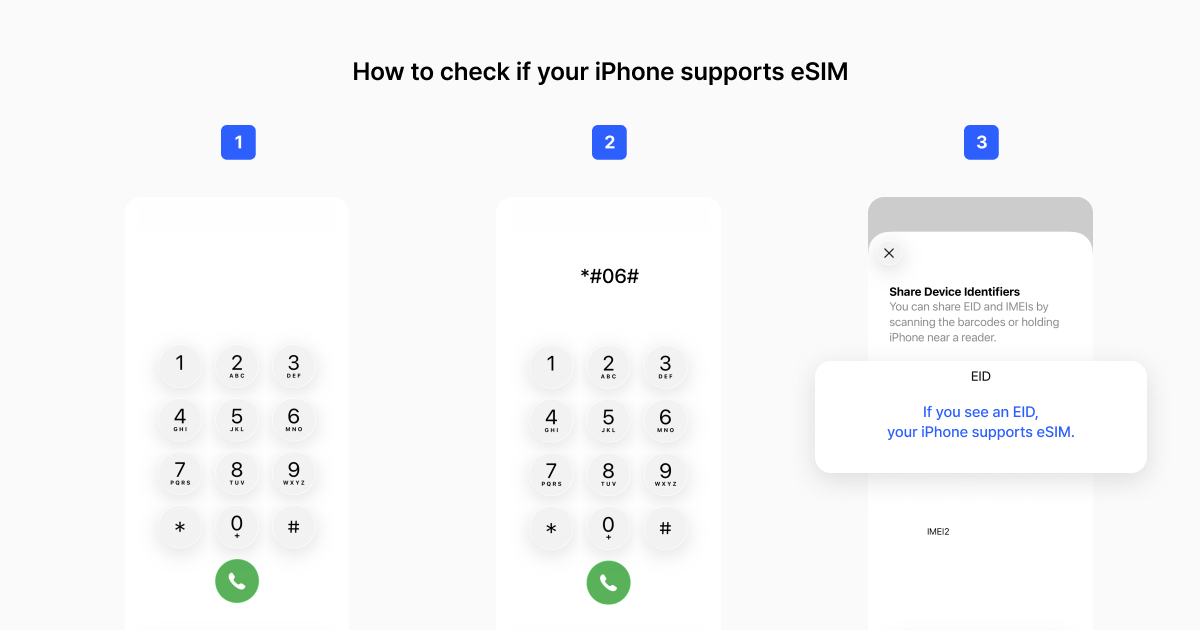
First, make sure your iPhone supports eSIM. Apple lists iPhone XS, iPhone XS Max, iPhone XR, and later models as eSIM-capable, although availability can vary by model and country or region of purchase.
A quick way to check is to open the Phone app and dial #06#. If an EID appears in your device information, your iPhone supports eSIM.
You can also go to Settings → General → About and look for an EID, or open Settings → Cellular and check whether Add eSIM appears. If you don't see an EID, check your exact iPhone model and where it was purchased.
2. Make sure your iPhone is carrier-unlocked
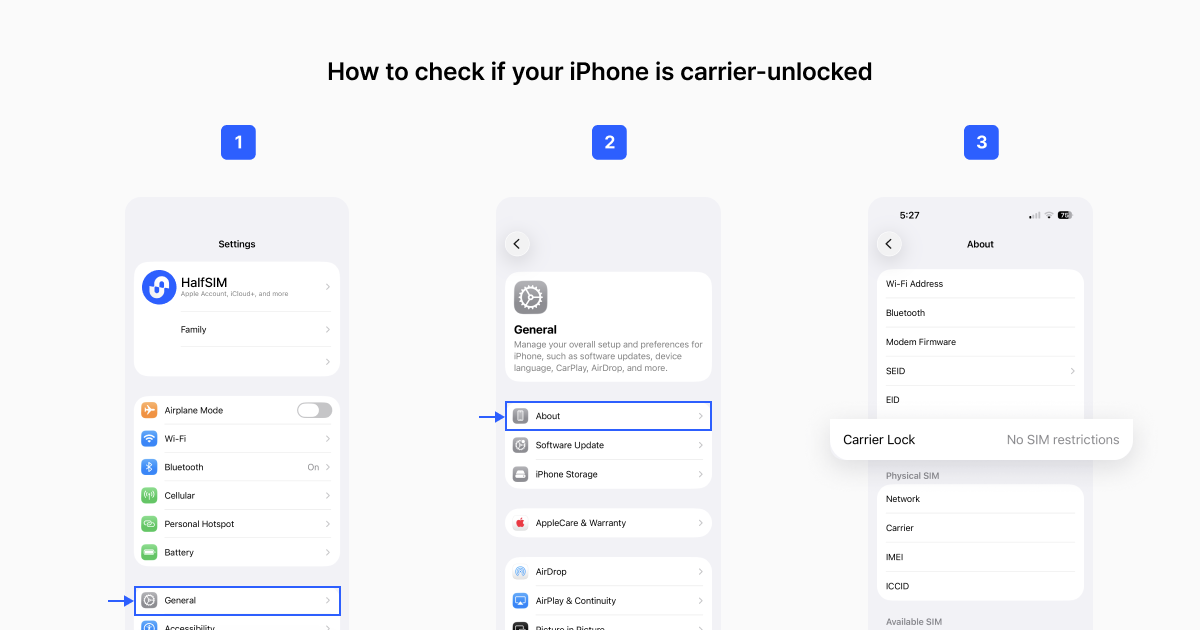
Even if your iPhone supports eSIM, a carrier lock can prevent you from using a travel eSIM from another provider.
Go to Settings → General → About → Carrier Lock. If you see No SIM restrictions, your iPhone is unlocked. Apple also notes that your iPhone must be unlocked to use another carrier while traveling internationally.
Still deciding which Korea eSIM to choose? Compare data allowances, 5G and hotspot support, validity, local networks, and pricing in [Best eSIM for Korea 2026: HalfSIM, Airalo, Holafly].
3. Use a reliable internet connection
Your iPhone needs an internet connection to add an eSIM. It's better to finish the installation before departure while you have reliable Wi-Fi rather than wait until you reach the airport in Korea. Apple notes that eSIM setup requires a Wi-Fi or cellular connection.
How Do You Install HalfSIM on iPhone?
After payment, HalfSIM sends the information you need to install your eSIM. You can tap the Install on iPhone button in the email or scan the QR code.
Option 1. Install HalfSIM from your email
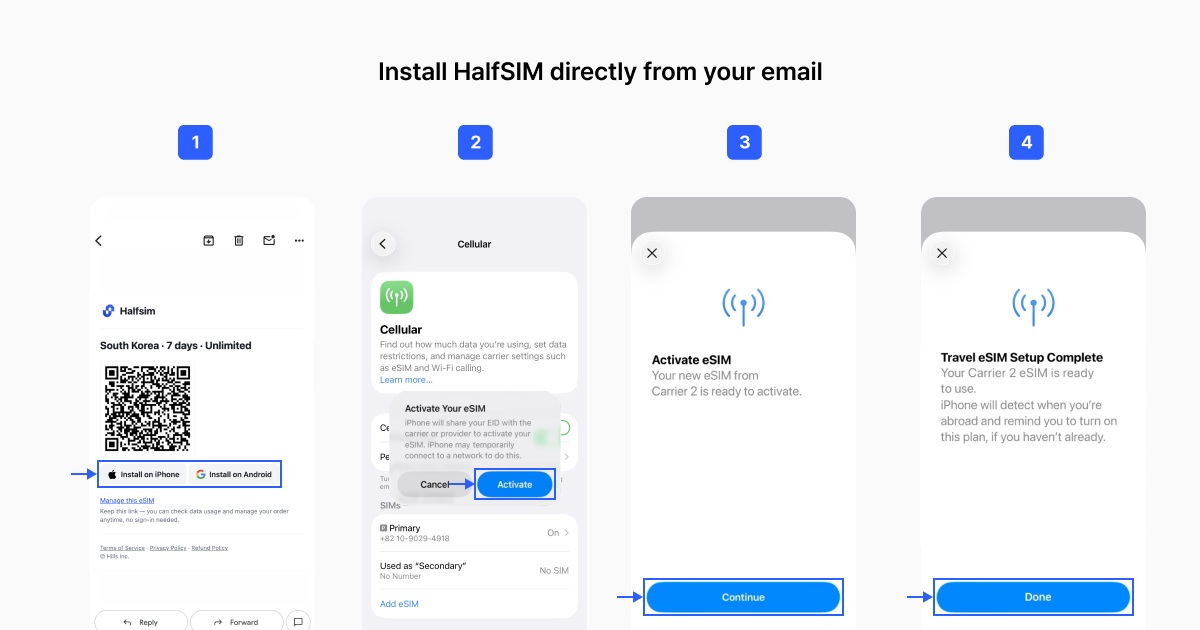
Open your HalfSIM installation email on the iPhone you'll use in Korea. Tap Install on iPhone and follow the onscreen instructions.
Once installation is complete, go to Settings → Cellular and check that the HalfSIM line appears. Label it HalfSIM, Korea, or Travel so you can identify it easily after landing.
Option 2. Install HalfSIM with a QR code
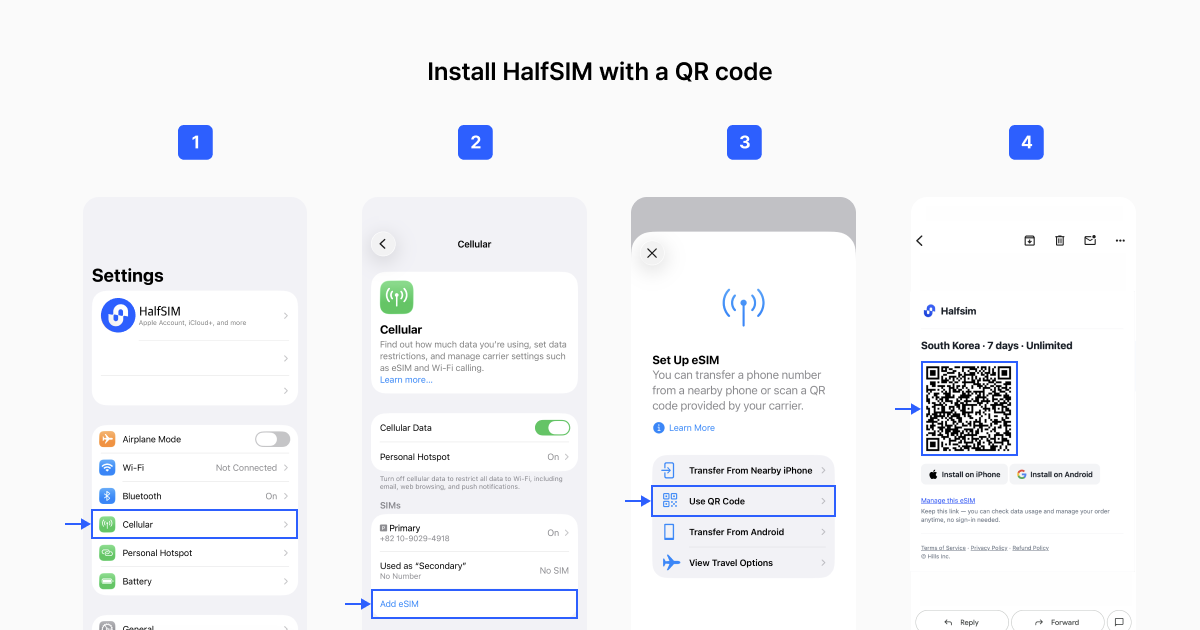
Go to: Settings → Cellular (or Mobile Data) → Add eSIM → Use QR Code. Scan the QR code from your HalfSIM installation email and follow the onscreen instructions. If the QR code is on another device, such as a laptop or tablet, simply scan it from that screen.
On iOS 17.4 or later, you can also press and hold an eSIM QR code in the default email app or browser, then select Add eSIM.
What Should You Know Before Installing HalfSIM?
Installing HalfSIM before departure makes arrival easier, but there are two things to check first.
First, installing the eSIM can limit refund eligibility. Under HalfSIM's current refund policy, standard withdrawal is restricted once the eSIM has been installed, even if you purchased it within the past seven days.
Second, don't delete the eSIM just because you're having connection issues. Apple advises against erasing an eSIM for troubleshooting unless your carrier tells you to. If you erase it, you may need a new eSIM.
How Do You Connect HalfSIM After Landing in Korea?
If you installed HalfSIM before departure, you do not need to reinstall the eSIM after landing. Check these three steps on your iPhone.
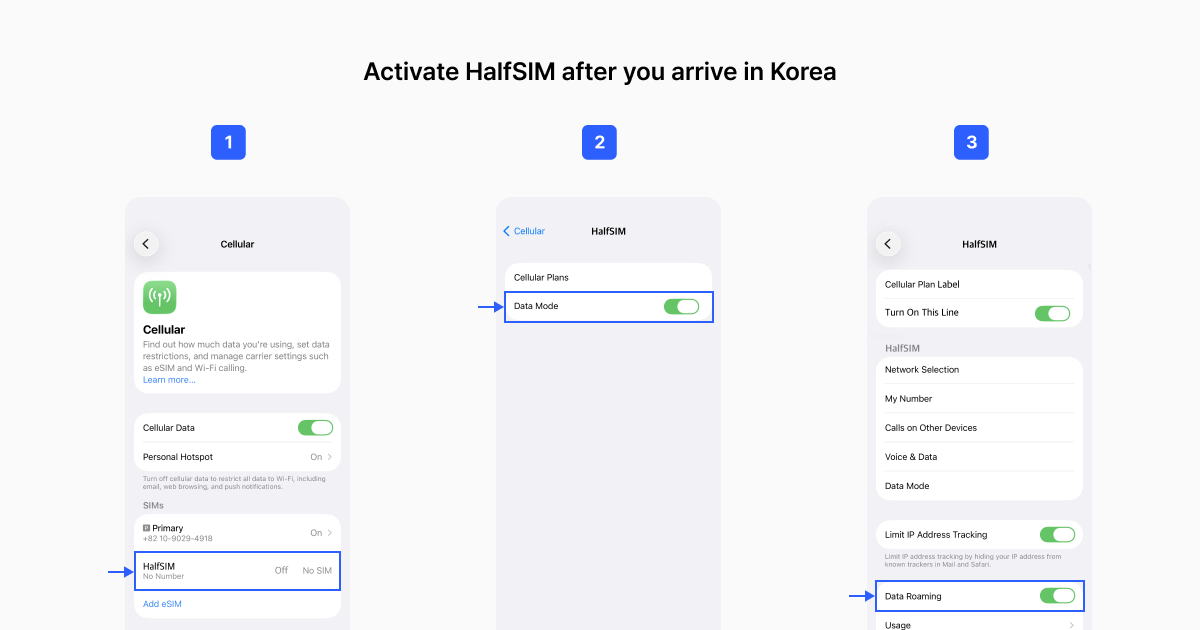
Step 1. Select HalfSIM for Cellular Data
Go to Settings → Cellular → Cellular Data, then select HalfSIM. If the HalfSIM line is off, turn it on first.
Step 2. Turn on Data Roaming for HalfSIM
Open the HalfSIM line settings and turn on Data Roaming. If your home SIM is still active, make sure you're changing the setting for HalfSIM—not your regular line.
Step 3. Test the mobile data connection
Turn off Wi-Fi and open NAVER Map, KakaoMap, Google Maps, or any other app or website that uses mobile data. If it loads, your HalfSIM connection is working.
Don't rely on a 5G icon alone to test the connection. Network availability can vary by device, plan, location, and local network conditions.
[Choose a HalfSIM Korea plan and arrive ready to connect →]
Korea eSIM Not Working on iPhone? Try These Fixes
If HalfSIM is installed but mobile data is not working in Korea, check these items in order.
1. Check that the HalfSIM line is on.
Open Settings → Cellular and check that the line is enabled.
2. Check that HalfSIM is selected for Cellular Data.
Make sure your regular SIM isn't still selected as the data line.
3. Check Data Roaming.
Make sure Data Roaming is on for the HalfSIM line.
4. Toggle Airplane Mode.
Apple recommends toggling Airplane Mode as part of eSIM troubleshooting.
5. Restart your iPhone.
If the settings look right but data still isn't working, restart your iPhone.
6. If you see an eSIM activation error.
Don't keep scanning the same QR code or delete the eSIM. Take screenshots of the error and your Cellular settings, then contact HalfSIM support.
7. If the QR code won't scan.
Display it on another device. On iOS 17.4 or later, you can also press and hold the QR code in the default email app or browser and look for Add eSIM.
FAQ: iPhone eSIM for Korea
Q. Can I keep my regular SIM active while using HalfSIM?
Yes. If your iPhone supports Dual SIM, you can keep your regular SIM active while using HalfSIM for data. Set HalfSIM as the Cellular Data line, and check Data Roaming and Cellular Data Switching on your regular line to avoid unexpected roaming charges.
Q. Will turning on Data Roaming for HalfSIM also turn it on for my regular SIM?
No. Data Roaming is set separately for each line on iPhone. Turn it on for HalfSIM, and leave it off on your regular SIM if you don't want that line using roaming data.
Q. Can I still receive calls or texts on my regular number while using HalfSIM for data?
If your iPhone supports Dual SIM, you can keep your regular SIM active while HalfSIM handles mobile data. If your home carrier provides service in Korea, you may still receive calls and texts on your regular number. Charges depend on your carrier's roaming policy, so check the terms before you travel. HalfSIM is data-only and does not include a Korean phone number, voice calls, or SMS.
After Your Korea Trip
When your trip is over, go to Settings → Cellular → Cellular Data and switch mobile data back to your regular SIM.
You can then turn off the HalfSIM line. Don't erase the eSIM while troubleshooting; remove it only after your trip is over and you're sure you won't need it again.
Set Up Your iPhone eSIM Before Your Korea Trip
Installing HalfSIM before departure lets you finish setup while you still have reliable internet. After landing, simply check Cellular Data and Data Roaming—there's no need to reinstall the eSIM. Before you install, confirm eSIM compatibility, Carrier Lock status, and the refund policy.
Sources